
Argento custom theme
Creating an Argento sub-theme provides you with unlimited possibilities in theme customization. Unlike css customization, a custom theme allows you to customize the following areas:
- Layout instructions
- Template files
- Javascripts
- Css styles
When an Argento sub-theme is used, Argento files are left untouched, and you may unpack a new Argento version over the old one without losing your modifications
Contents
Create custom theme
Terminal command
- Open the terminal and navigate to the Magento home folder.
-
Run the following command:
Please, replace
[essence|flat|pure2|mall|stripes|luxury|force|home|marketplace]with the theme name you would like to use.bin/magento swissup:theme:create Local/my-theme [essence|flat|pure2|mall|stripes|luxury|force|home|marketplace|chic] - Log in to Magento backend and navigate to Content > Themes. You should see the new theme in the list.
- That’s all. Apply your new theme now
Manual
Please replace [essence|flat|pure2|mall|stripes|luxury|force|home|marketplace] entries with the
theme name you would like to use
-
Create a folder for your new theme:
app/design/frontend/Local/my-theme -
Create the following files inside the new theme directory to register your theme in Magento:
-
composer.json
{ "name": "local/my-theme", "type": "magento2-theme", "version": "1.0.0", "require": { "swissup/theme-frontend-argento-[essence|flat|pure2|mall|stripes|luxury|force|home|marketplace]": "*" }, "autoload": { "files": [ "registration.php" ] } } -
theme.xml
<theme xmlns:xsi="http://www.w3.org/2001/XMLSchema-instance" xsi:noNamespaceSchemaLocation="urn:magento:framework:Config/etc/theme.xsd"> <title>Local custom theme</title> <parent>Swissup/argento-[essence|flat|pure2|mall|stripes|luxury|force|home]</parent> </theme> -
registration.php
<?php

use Magento\Framework\Component\ComponentRegistrar;

ComponentRegistrar::register(ComponentRegistrar::THEME, 'frontend/Local/my-theme', __DIR__);
-
- Log in to Magento backend and navigate to Content > Themes. You should see the new theme in the list.
- That’s all. Apply your new theme now
View Examples
If you have trouble creating a new theme, please take a look at our examples at github repository.
Apply custom theme
Navigate to Content > Design > Configuration, select the store you wish to apply the custom theme to, and select your theme in the “Default Theme” section:
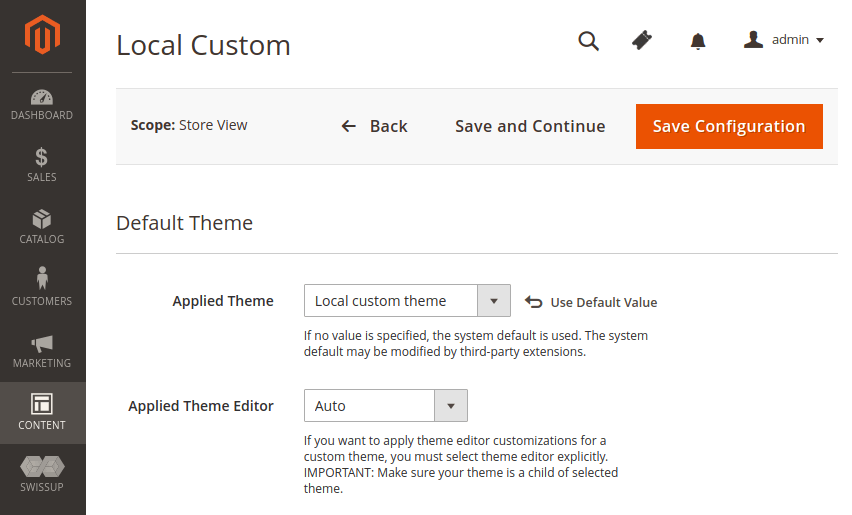
Save configuration, clear cache, and check the frontend.
Enable theme editor for custom theme
Supported since theme-editor version 1.9.8
By default, a custom theme doesn’t inherit theme editor changes. If you want to apply the changes to your custom theme (inherited from one of Argento themes) you should explicitly indicate this in the theme view.xml file:
-
Open
etc/view.xmlfile inside your custom theme. If it doesn’t exist, create it:<?xml version="1.0"?> <view xmlns:xsi="http://www.w3.org/2001/XMLSchema-instance" xsi:noNamespaceSchemaLocation="urn:magento:framework:Config/etc/view.xsd"> </view> -
Add the following code into the file (between
<view>tags):<vars module="Swissup_ThemeEditor"> <var name="code">THEME_EDITOR_CODE</var> </vars> -
Replace
THEME_EDITOR_CODEwith one of the following values:- swissup_absolute
- swissup_argento_chic
- swissup_argento_essence
- swissup_argento_flat
- swissup_argento_force
- swissup_argento_home
- swissup_argento_luxury
- swissup_argento_mall
- swissup_argento_marketplace
- swissup_argento_pure
- swissup_argento_pure2
- swissup_argento_stripes
Make sure your theme is a child of selected theme.
-
Save the file, clear cache, and check the frontend.