
Google API Configuration
To use Google login feature, you need to create Google application and link it to your site. Google will generate application id and secret, which you need to copy and set in Social Suite extension configuration.
1. To create Google application, please follow the next steps:
- Go to console.developers.google.com
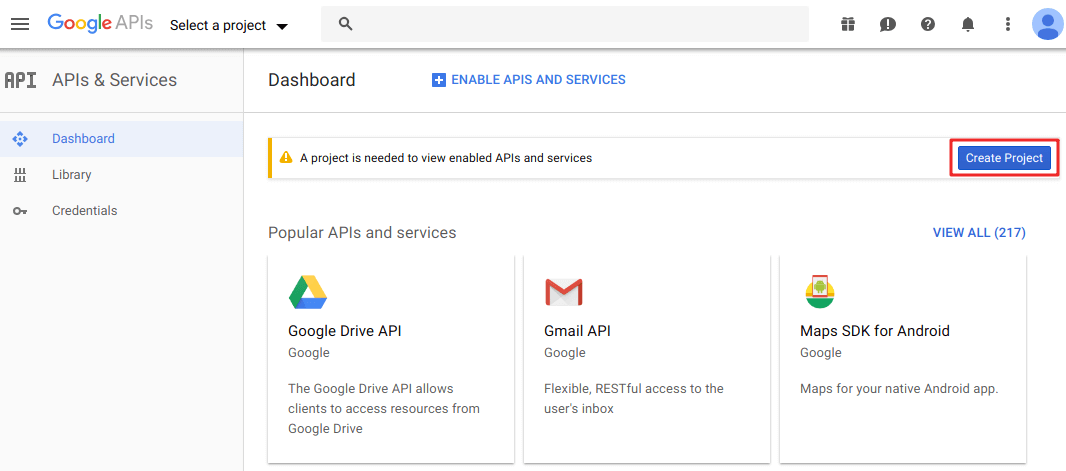
and login with your account. Press
Create Projectand thenCreatebuttons.
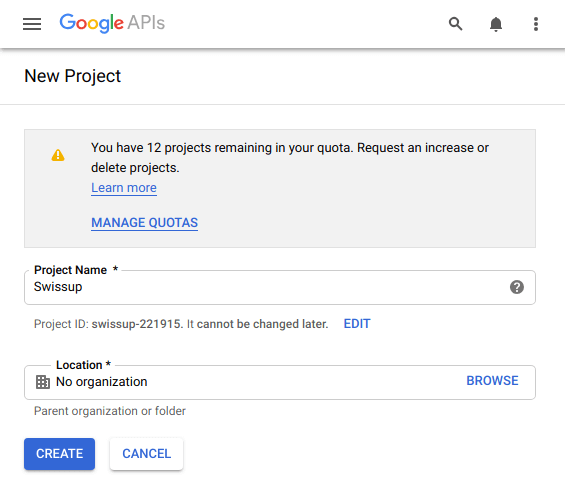
- Enter
Project Nameand pressCreatebutton.
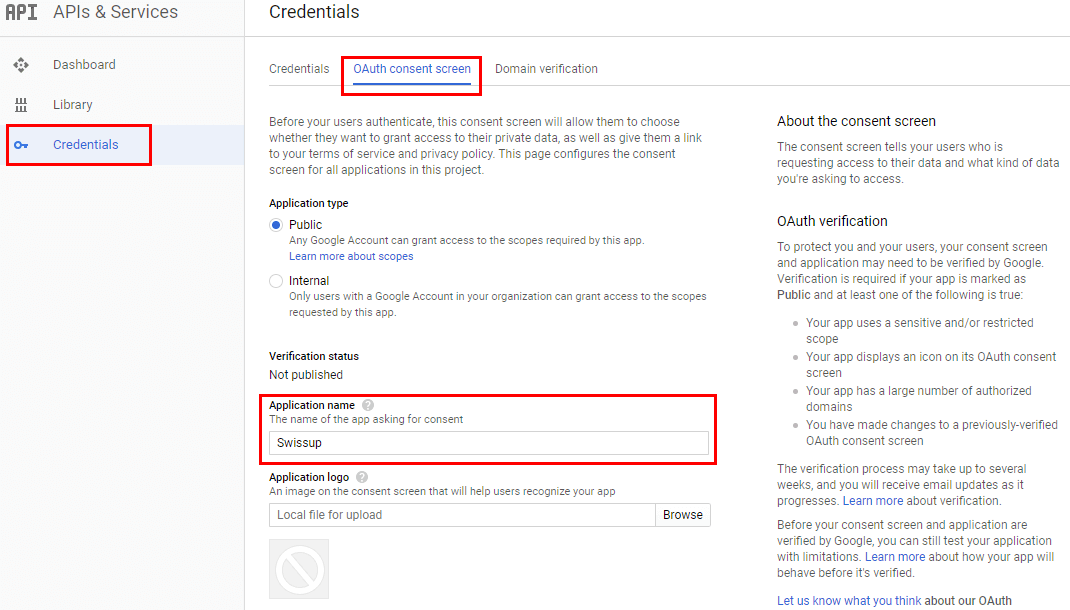
- Go to
Credentialspage and switch toOAuth consent screen. FillApplication nameand add your site domain toAuthorized domainsand pressSave.
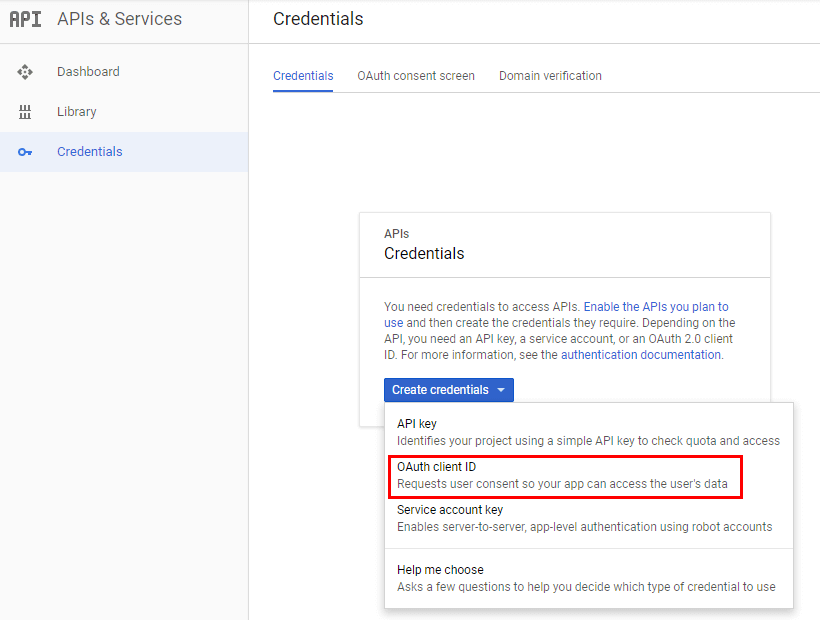
- Go back to
Credentialspage and inCreate credentialsdropdown selectOAuth Client ID
-
On the
Create OAuth Client IDpage selectWeb applicationtype and fill the fields:- Name
- In
Authorized JavaScript originsenter your site url - In
Authorized redirect URIsfillhttps://[your.domain]/sociallogin/social/login/id/google/
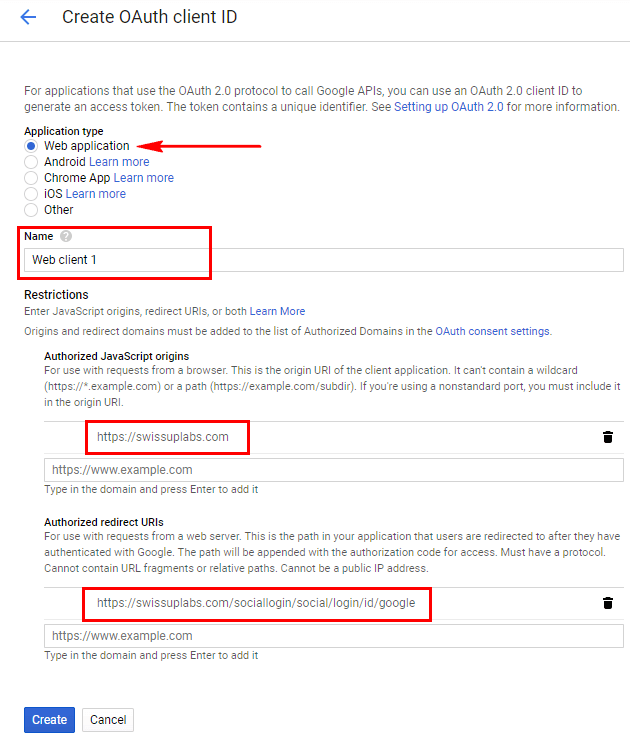
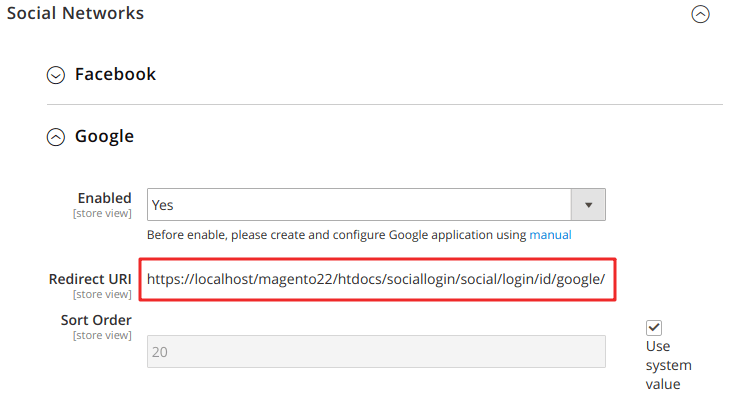
If you are not sure about redirect URI, go to Magento admin
Stores > Configuration > Swissup Social Suite > Social login > Social Networks > Google
and copy generated value from
Redirect URIfield
- Press
Createbutton
2. Add app id and app secret to Social Login configuration:
-
On
Credentialspage of your application, click on the application name inOAuth 2.0 client IDslist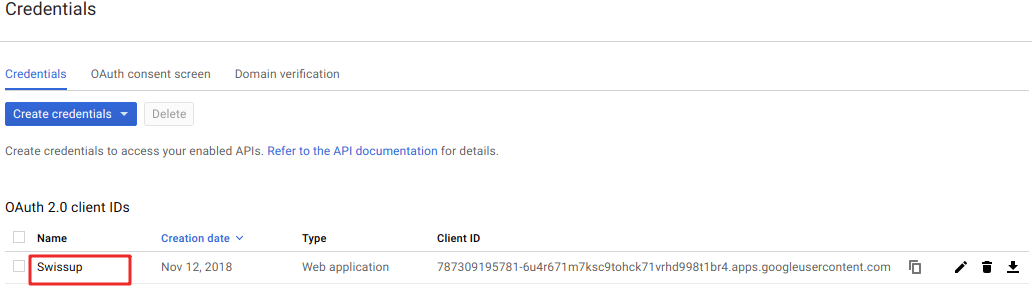
and copy
Client IDandClient secret.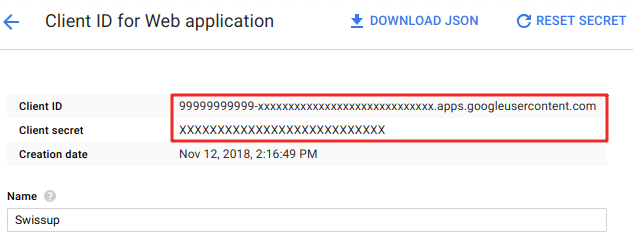
-
In Magento admin, go to
Stores > Configuration > Swissup Social Suite > API Credentials > Googleand insertClient IDandClient secretfrom your app.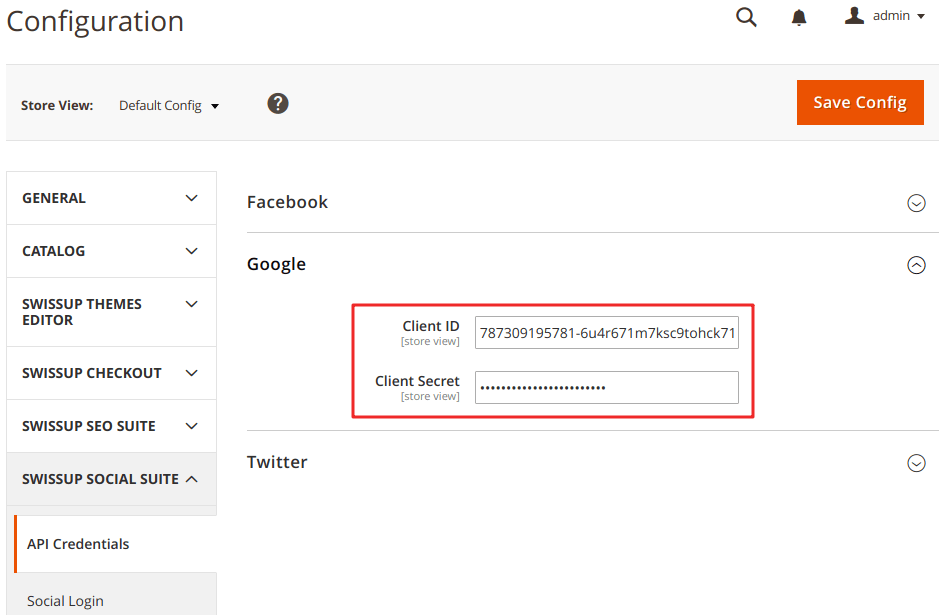
3. Now you can enable Google login feature in
Stores > Configuration > Swissup Social Suite > Social login > Social Networks > Google