Checkout Fields Usage Examples
- Order Comment Field
- Add notice, tooltip, and placeholder for the field
- Display Fields in Order Email
- Email Templates and Mage-OS 3.5.0
- Display Fields at Checkout Success Page
- Display Fields in Orders Grid
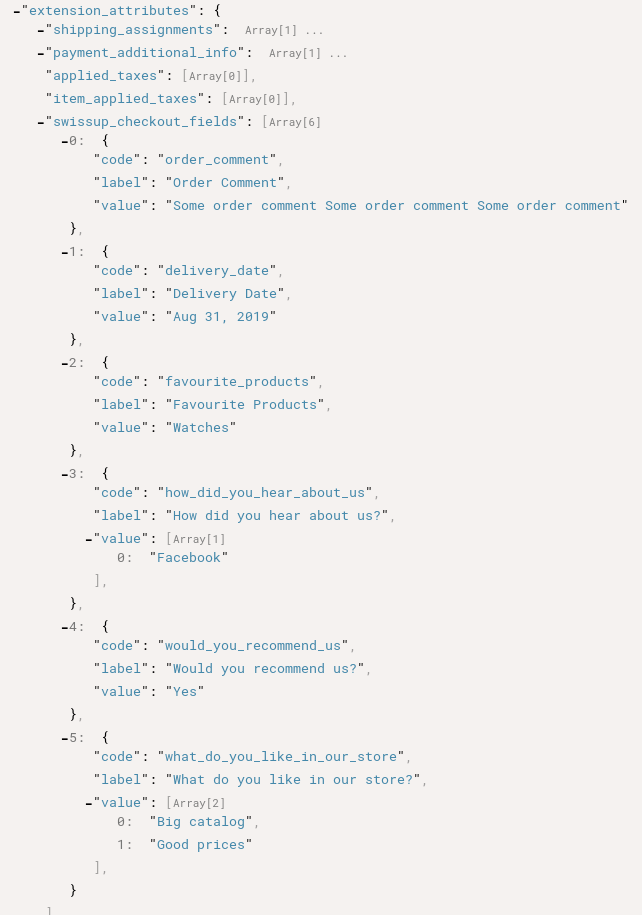
- Get Fields Values in Orders API
Order Comment Field
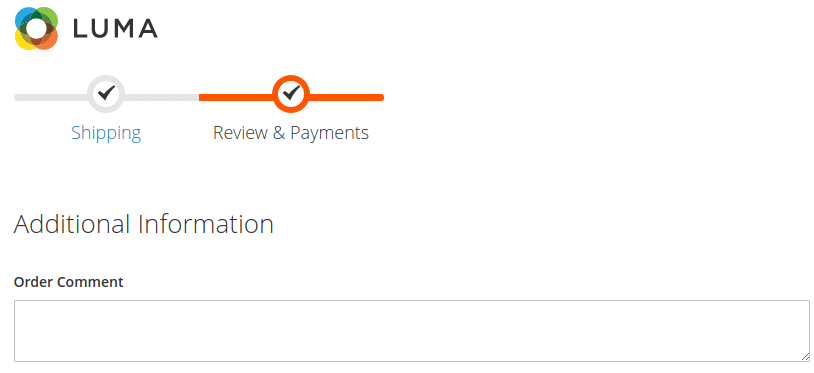
To add order comment field on checkout, follow below steps:
- Go to
Swissup > Checkout > Checkout Fields - Press
Add New Fieldbutton - Fill
Default Label - Select
Store Viewwhere to show the field - In
Catalog Input TypeselectText Area - If required, fill other optional properties, such as
Values Required,Sort OrderandDefault Value - Specify labels for other store views on
Manage Labelstab if required - Press
Save Fieldbutton - Go to checkout and check the field you created:
Add notice, tooltip, and placeholder for the field
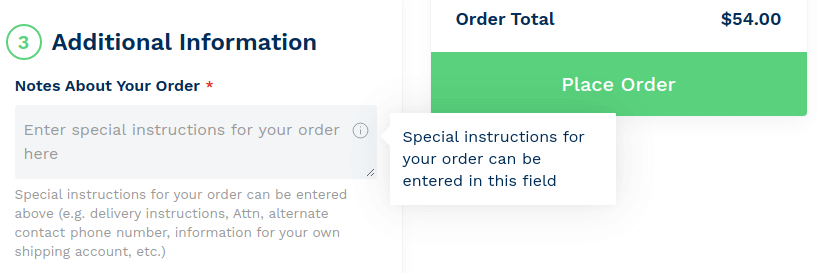
You can specify a notice, tooltip, and placeholder for the field in
the Advanced Field Properties section when creating or editing the field at
Swissup > Checkout > Checkout Fields
Display Fields in Order Email
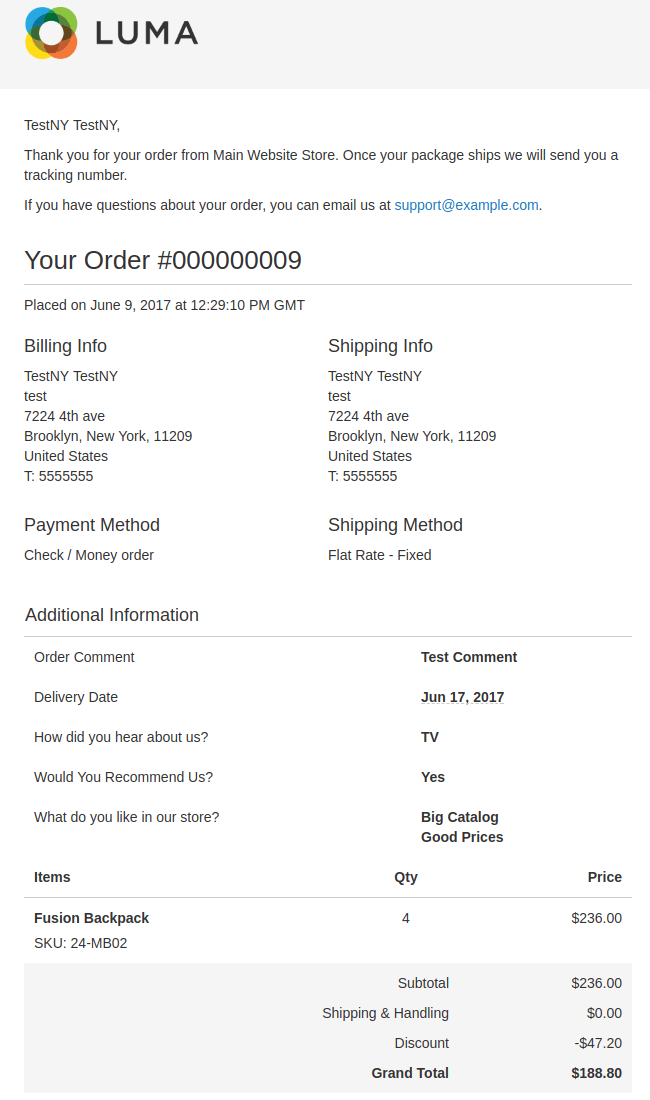
In order to display checkout fields in order emails, follow next steps:
- Go to
Marketing > Communications > Email Templates - Press
Add New Templatebutton - Select template, for example
New Order for Guest, and pressLoad Templatebutton - Give name for template in
Template Namefield -
In
Template Contentplace the following code where you want to show checkout fields:{{block class="Swissup\CheckoutFields\Block\Order\View\Fields" area="frontend" template="Swissup_CheckoutFields::email/order/fields.phtml" order_id=$order_id}}if you want to display only specific fields, list comma-separated attribute codes in
fields_to_showparamether:{{block class="Swissup\CheckoutFields\Block\Order\View\Fields" area="frontend" template="Swissup_CheckoutFields::email/order/fields.phtml" order_id=$order_id fields_to_show="order_comment,favourite_products,delivery_date"}}Note: before 1.6.17 these examples used
Swissup\CheckoutFields\Block\Adminhtml\Order\View\Fields. That class still works, but Mage-OS 3.5.0 refuses to render blocks from aBlock\Adminhtml\namespace in email templates. See Email Templates and Mage-OS 3.5.0 below. - Press
Save Templatebutton - Go to
Stores -> Configuration -> Sales > Sales Emails -> Order, select new template inNew Order Confirmation Template for Guestand pressSave Config - Check order email with checkout fields:
Email Templates and Mage-OS 3.5.0
Mage-OS 3.5.0 added a policy that stops email templates from rendering admin
blocks. A {{block class="..."}} directive pointing at a class whose name
contains \Block\Adminhtml\ renders an empty string — the checkout fields
simply disappear from the email, with a warning written to the log and no
error shown.
Since 1.6.17 the extension provides
Swissup\CheckoutFields\Block\Order\View\Fields for this purpose. It renders
exactly the same output as the old block and takes the same order_id and
fields_to_show parameters, so switching over is a matter of replacing the
class name:
{{block class="Swissup\CheckoutFields\Block\Order\View\Fields" area="frontend" template="Swissup_CheckoutFields::email/order/fields.phtml" order_id=$order_id}}
Email templates you already saved keep working after the update — the extension explicitly allows the old class — so this is a recommendation, not a required migration. Adobe Commerce and Magento Open Source are unaffected; they have no such policy.
Display Fields at Checkout Success Page
Use module Checkout Success Page module to get custom checkout fields at success page.
- Make sure Checkout Success page is enabled. Go to
Stores>Configuration>Swissup Checkout>Success Pageand check option ‘Enabled’ in ‘General’ section. - Go to section ‘Page Layout’. Drag
Checkout Fieldsblock from ‘Blocks available on Success Page’ and drop at ‘Layout of Success Page’ in place where you want to see checkout fields. - Save config or use ‘Save and Start Preview’ button to check how success page looks.
Display Fields in Orders Grid
To display checkout fields in orders grid, follow next steps:
- Go to
Swissup > Checkout Fields, edit the field and setAdd to Column OptionstoYes. - Go to
Sales > Ordersand select fields you want to display inColumnsdropdown.
Get Fields Values in Orders API
Since 1.3.0 version checkout fields values can be accessed in API
using orders and orders/{id} endpoints.