
Apple API Configuration
To use Apple login feature, you need to register your site in Apple Developer account. Unlike other social networks, Apple doesn’t give you an application secret. Instead, you create a private key and Social Login uses it to generate the secret automatically.
You will need the following values from Apple:
- Services ID - identifier of your site in Apple
- Team ID - identifier of your Apple Developer account
- Key ID and Private Key (
.p8file)
Requirements
- Apple Developer Program membership. Free Apple accounts can’t use Sign in with Apple on websites.
- Social Login 1.2.0 or newer.
- Store must use HTTPS and a public domain name. Apple doesn’t allow
localhost, IP addresses or local domains like.test.
1. Create App ID:
-
Go to developer.apple.com/account and open
Certificates, Identifiers & Profiles > Identifiers. -
Press
+button, selectApp IDsand pressContinue. SelectApptype and pressContinueagain. -
Fill
Description(e.g.Example Store) and explicitBundle ID(e.g.com.example.store). -
In
Capabilitieslist, checkSign In with Apple. PressContinueand thenRegister.
2. Create Services ID:
-
On
Identifierspage press+button, selectServices IDsand pressContinue. -
Fill
DescriptionandIdentifier(e.g.com.example.store.web). PressContinueand thenRegister.Customers will see the
Descriptionon Apple sign in screen, so use your store name. -
Open created Services ID. To find it, switch the filter at the top right of
Identifierslist fromApp IDstoServices IDs. -
Check
Sign In with Appleand pressConfigurebutton near it. Fill the fields:Primary App ID- select App ID created on step 1Domains and Subdomains- your store domain withouthttps://, e.g.example.comReturn URLs-https://[your.domain]/sociallogin/social/callback/id/apple/
Press
Next,Done,Continueand finallySave.Note: Apple uses
/callback/in the URL, while other social networks use/login/. Please copy the Return URL from Magento adminStores > Configuration > Swissup Social Suite > Social login > Social Networks > Apple
from
Redirect URIfield. The URL must match exactly, including store code and trailing slash.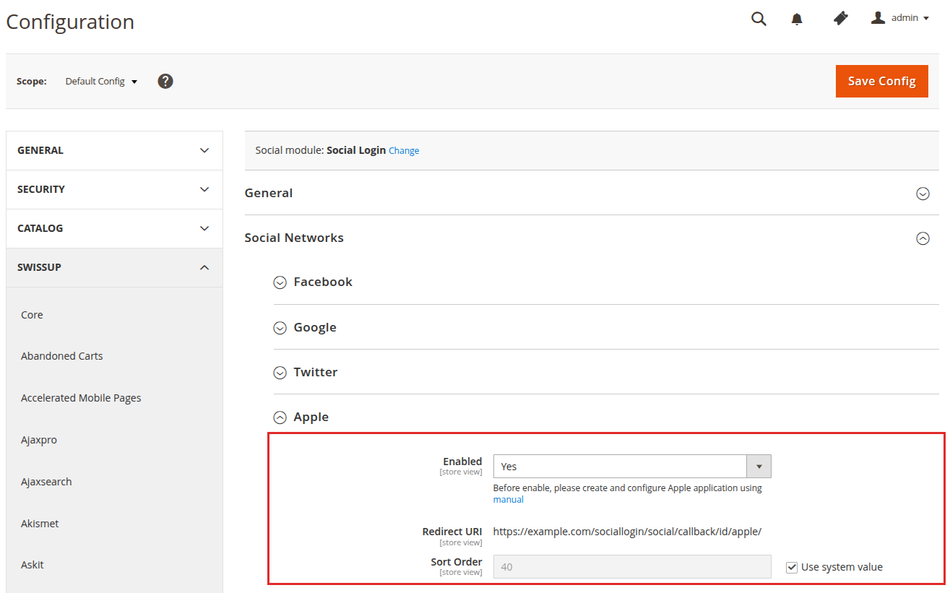
If your store has several domains or store views with different URLs, add every domain and every
Redirect URIto the same Services ID. SwitchScopein Magento admin to seeRedirect URIof each store view.
3. Create private key:
-
Go to
Certificates, Identifiers & Profiles > Keysand press+button. -
Fill
Key Name, checkSign in with Appleand pressConfigurenear it. Select App ID created on step 1 asPrimary App IDand pressSave. -
Press
Continueand thenRegister. -
Press
Downloadbutton to save the private key (AuthKey_XXXXXXXXXX.p8file) and copyKey IDfrom this page.Apple allows to download the key only once. Keep the file in a safe place. If you lose it, revoke the key and create a new one.
-
Find your
Team IDin the top right corner under your account name, or inMembership detailssection of your developer account.
4. Add credentials to Social Login configuration:
-
In Magento admin, go to
Stores > Configuration > Swissup Social Suite > API Credentials > Appleand fill the fields:Services ID- identifier of the Services ID from step 2 (e.g.com.example.store.web). Don’t use App ID here.Team ID- your Team IDKey ID- Key ID from step 3Private Key- open downloaded.p8file in a text editor and paste its whole content, including-----BEGIN PRIVATE KEY-----and-----END PRIVATE KEY-----lines
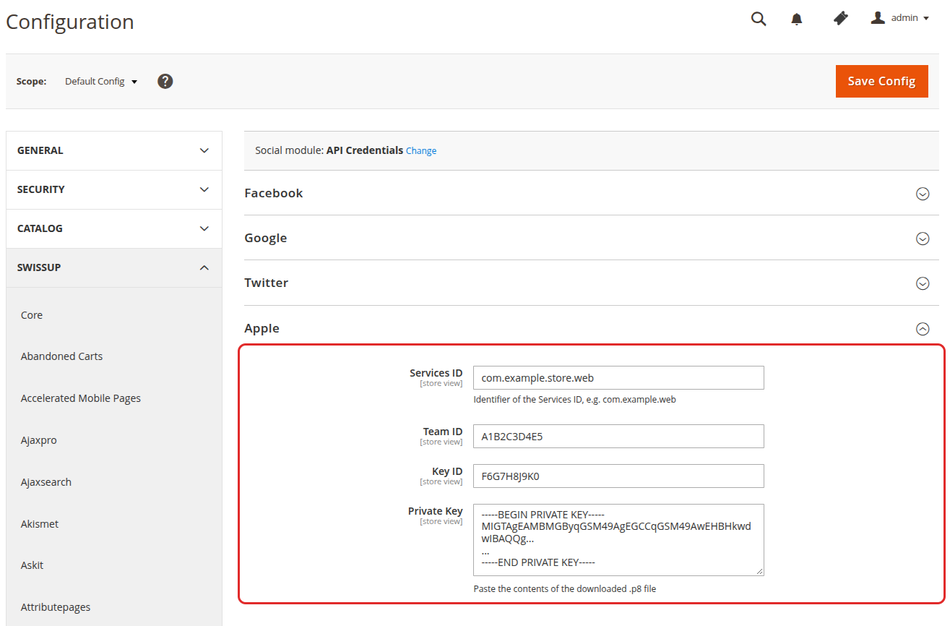
Private key is stored encrypted in the database.
5. Now you can enable Apple login feature in
Stores > Configuration > Swissup Social Suite > Social login > Social Networks > Apple
Emails to customers with hidden email address
When customers sign in with Apple, they can choose to hide their real email.
In this case Apple gives your store an address like
abc123xyz@privaterelay.appleid.com and forwards emails to the customer.
Apple forwards only emails from registered senders. Otherwise order confirmations and other store emails won’t be delivered. To register senders:
-
Go to
Certificates, Identifiers & Profiles > Servicesand pressConfigureinSign in with Apple for Email Communicationsection. -
Add the domains and email addresses your store sends emails from. You can find them in Magento admin at
Stores > Configuration > General > Store Email Addresses. -
Domains must have an SPF record. If you send emails through a service like SendGrid or Amazon SES, check that its SPF and DKIM are configured for your domain.
Troubleshooting
Customer name looks like a part of the email address
Apple shares the customer name only the first time a customer signs in to your site. If the name is not available, Social Login creates the account with a name taken from the email address. Customers can change it in their account.
How to test sign in again as a new customer
Apple remembers that a customer already authorized your site. To test the first
sign in again, go to account.apple.com,
open Sign-In and Security > Sign in with Apple, select your site and press
Stop using Sign in with Apple.
“invalid_client” error on Apple page
Check that Services ID in Magento contains the Services ID identifier,
not the App ID, and that Sign In with Apple is enabled for this Services ID.
“Invalid web redirect url” error on Apple page
Return URLs in Services ID configuration doesn’t match Redirect URI field
in Magento. Copy it from Magento admin once again and check the domain,
store code and trailing slash.
“Something went wrong. Please try again.” after signing in on Apple page
Apple rejected the private key. Check that Team ID, Key ID and Private Key
belong to the same Apple Developer account, that the key has Sign in with Apple
enabled, and that it was not revoked.